
XPath is used to uniquely identify an element in an XML or HTML documents. I have mentioned briefly on how we can use XPath to select an element and use it as an object in automation. For this blog, I want to cover the use of XPath in web testing in more depth. I just want to share how I use custom XPath to select elements, that can work when dealing with dynamic elements, and can be easily parameterized for more flexible use.
I want to cover some of the ways I use custom XPaths. So I won’t cover all the ways or methods here. But I will share my resource on how I learned it at the end of this blog. I will be using this page for our example in this blog.
Basic XPath element selector
For this example, let’s say that I want to select the “Double Click Me” button, and this is how the HTML structure is:

By clicking right and selecting “Inspect” we can see the element is a button and has attributes id, type, class, and text “Double Click Me”. We can create a unique XPath selector to select this element. for example:
//button[@id='doubleClickBtn']
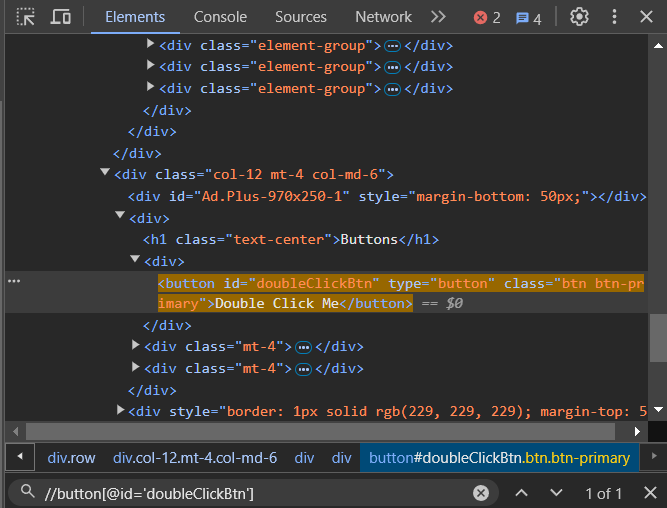
This will successfully select the button element we want, because it is the only button that has the id “doubleClickBtn”
Using text(), contains(), and starts-with()
This time, instead of using the “id” attribute, let’s use the text of the button, “Double Click Me”. We can do that by using the “text()” method.
//button[text()='Double Click Me']
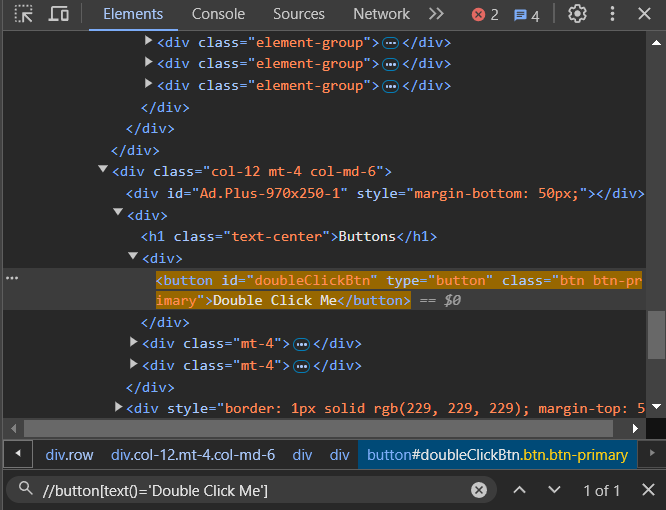
This will successfully select the button we want because it’s the only button to have the “Double Click Me” text.
Next, let’s try the contains() method. This method lets you select an attribute without typing the whole attribute name or text. For example, to select the same button as last time, we can try:
//button[contains(text(), 'Double')]
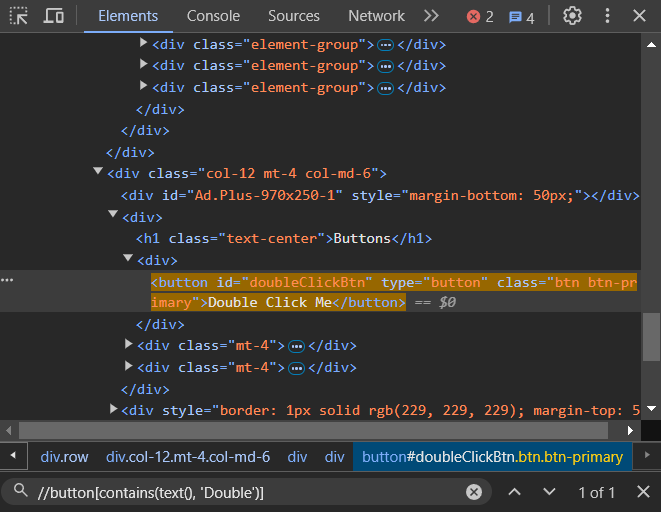
This time, we only use the button text partially. It will look for a button that contains the text “Double” and select the element.
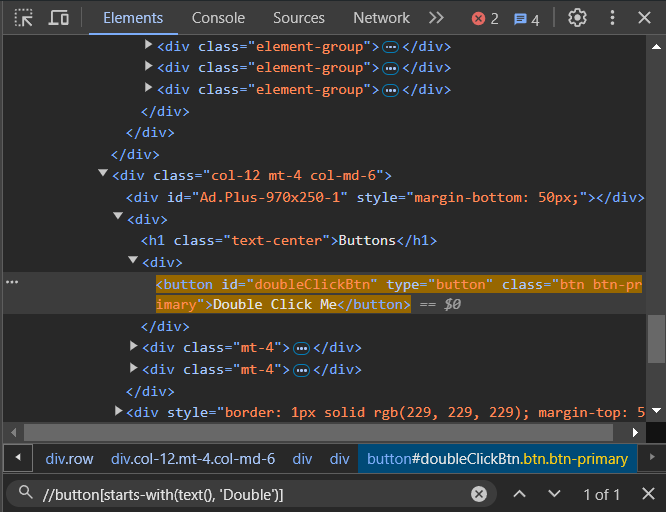
We can also use the starts-with() method, and as the name implies, it can help us select an element by only stating the start of the attribute or text, for example:
//button[starts-with(text(), 'Double')]
Using AND & OR statement
We can use one or more attributes and texts when selecting. To help us select the element, we can use the AND & OR statements. To select our beloved “Double Click Me” button, we can try:
//button[@type='button' and text()='Double Click Me']
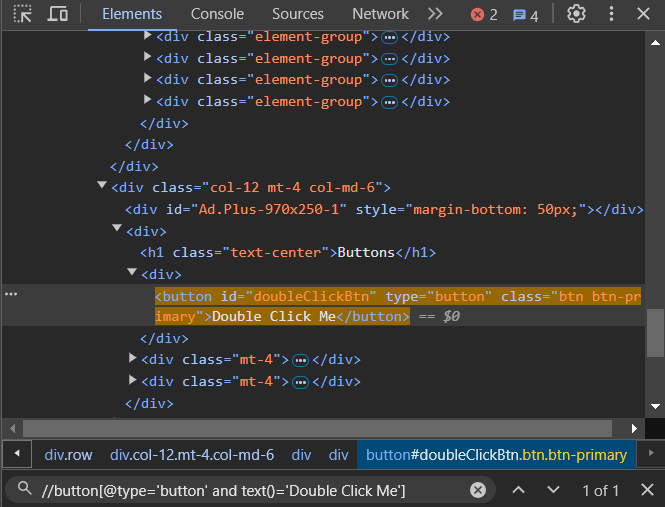
Using the button attribute type “button” and the button’s text “Double Click Me”, we have successfully selected our button again.
We can also use OR statement:
//button[@type='button' or text()='Double Click Me']

But when using the OR statement, we can’t uniquely find our “Double Click Me” button. It also selected three other buttons because they too have the attribute type “button”. Following the AND and OR statement logic, if any of the statements [@type=’button’] or [text()=’Double Click Me’] is true, then the element is selected.
Using the following-sibling method
Let’s see if we can find our buttons using the following-sibling method. We can see in our screenshot below, that our <h1> is on the same level as our divs (marked in green), and each divs has our buttons (marked in yellow).
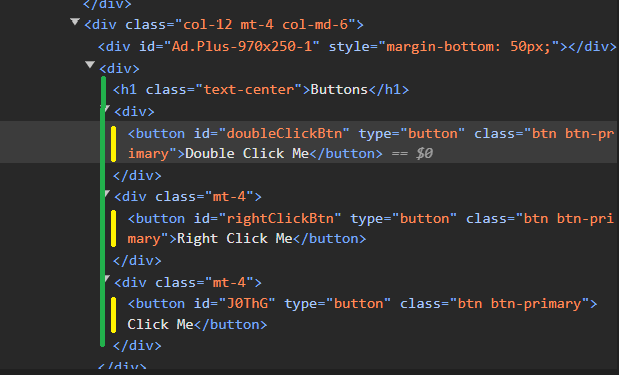
So we can try:
//h1//following-sibling::div
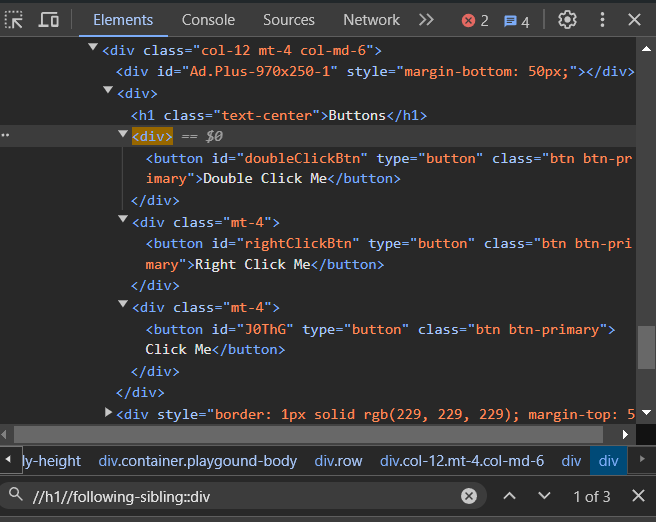
And it will select all three divs after the <h1> that are on the same level.
Using the parent method
For this example, let’s say we have found our “Double Click Me” button, but we want to select the div that contains our button instead. We can do that by using this XPath:
//button[text()='Double Click Me']//parent::div
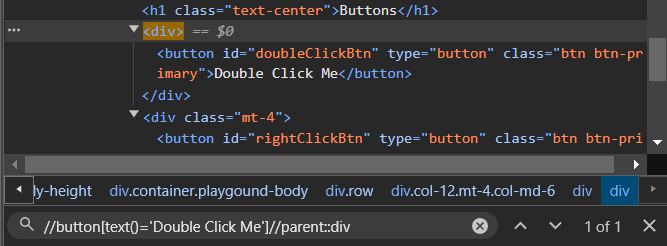
It will select the parent div from our button element.
Using Ancestor method
When using the parent method, we can only select one parent from our element. But what if we want to select all divs that are above our element. We can use that by using the ancestor method:
//button[text()='Double Click Me']//ancestor::div
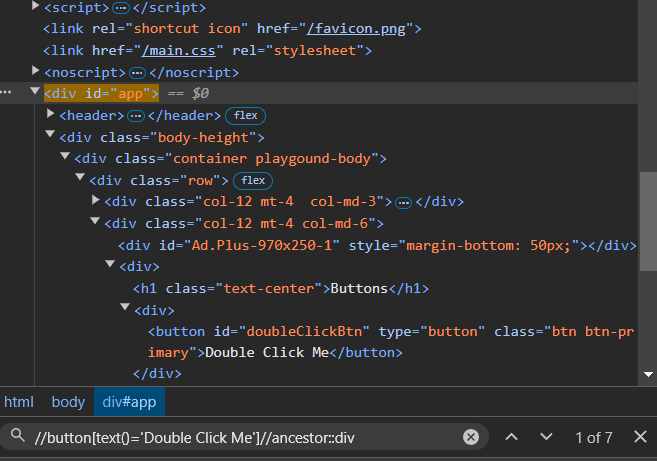
This will select all divs that are above or all the great great parents to our button element.
Selecting SVG element
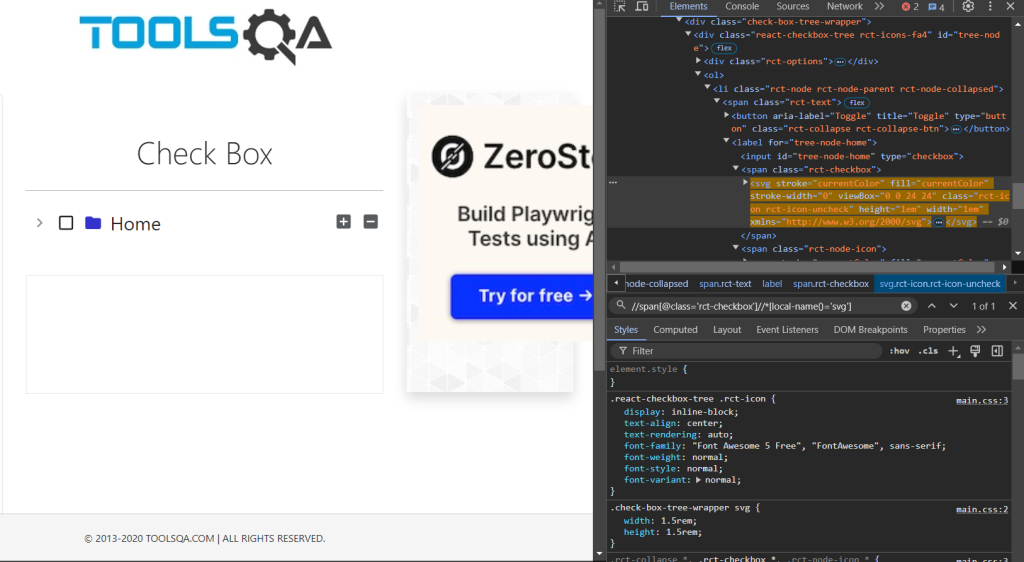
To select and SVG element, there needs to be a little more syntax included. For example in this page I want to click on the “Home” checkbox, and we want to select the svg element. We can do that by adding “//*[local-name()=’svg’]”. So to select out checkbox, we can use XPath:
//span[@class='rct-checkbox']//*[local-name()='svg']
What to do when you can’t uniquely identify the element
Sometimes we get into the trouble of not finding the unique XPath to identify our element. I have a simple trick to solve this. Let’s go back to our buttons again. When we try:
//button[@class='btn btn-primary']
It will select all three buttons, because all of them have the same “btn btn-primary” class. To choose the first button we can use this syntax:
(//button[@class='btn btn-primary'])[1]
Surely as you can guest, to select the second and third button, you can simply change the
“[1]” into “[2]” and “[3]”. You can try it on this page.
(//button[@class='btn btn-primary'])[2]
(//button[@class='btn btn-primary'])[3]
For more resources on XPath, I recommend this page to learn more.