
In Katalon Studio, a Test Suite is a collection of test cases grouped together to be executed sequentially. After running a Test Suite, Katalon Studio will generate a report that shows the overall result of the Test Suite and each Test Case in the Test Suite. Test Suites are suitable for regression testing or smoke testing and it allows the tester to rerun them whenever you make changes to your application.
Create a Test Suite from our Test Cases
To create a Test Suite, just right-click on the “Test Suite” folder and choose “New” > “Test Suite”. After naming the Test Suite, we can click on “Add” and in the “Test Case Browser” window, check on the Test Cases to add to the Test Suite. Once that is done, we now have a Test Suite that’s ready to run. On the right side of each row (or each Test Case), there’s a column “Run”, and you can check or uncheck this to select which Test Cases we want or don’t want to run. When everything’s all set, click on the “Run” button.

Create Profiles and Global Variables
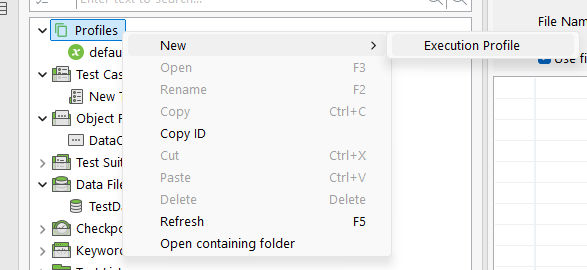
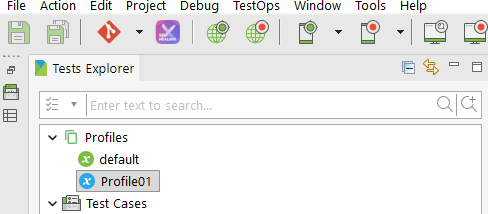
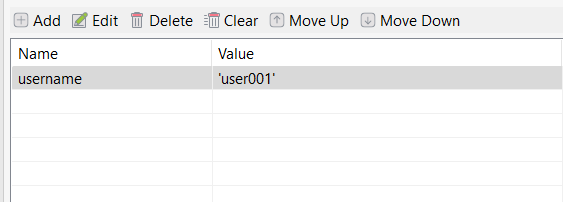
In one Test Suite, we can use the same global variables. The global variables can be set in our Profiles. To do that click on the “Profile” folder, click on “New” > “Execution File” > input your profile name. Once the profile is created, double click on it to open. Here, click on “Add”, then give the name of the variable, value type, and value. For example, I have created a global variable called “username” with a string value type and the value of “user001”.
Using a Global Variable in Test Case and Test Suite
This username variable (the global variable) can be used for all Test Cases inside one Test Suite. In the Test Case script view, this is how to call the global variable called “username”:
GlobalVariable.username
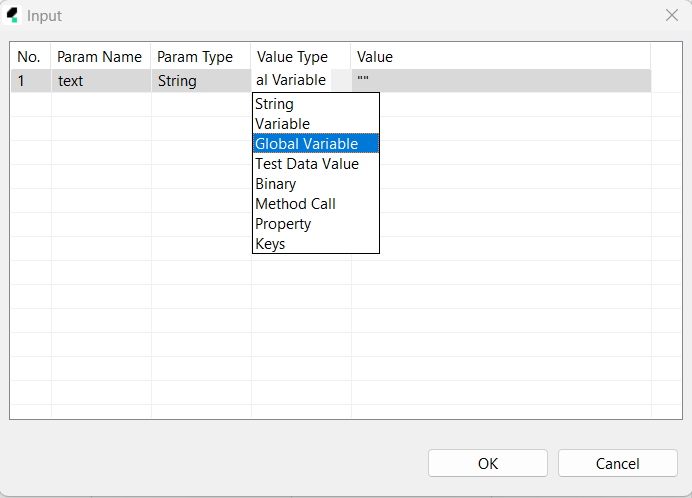
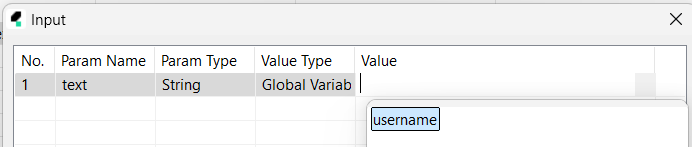
Or in the manual view, for example we want to set text to a textbox with the value of the global variable username, click on “Add” > “Web UI Keyword”, choose “Set Text”, choose the object, then double click on the Input cell, and change the “Value Type” into “Global Variable”. Now double click on the “Value” cell and choose the “username” variable. When all are set, click “OK”.

Before running the Test Suite, don’t forget to choose the Profile we want. To do that, there’s a dropdown at the top right of Katalon Studio. This dropdown will show all of the Profiles.
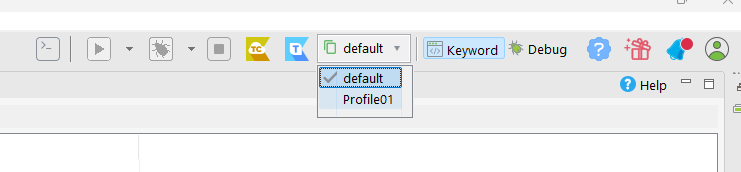
When the Test Suite is running, it will check on the selected Profile and get the variables’ values. And this values will be used in all of the Test Cases inside the Test Suite. Make sure the Test Cases are using the same variable name as in the Profile.
We can also assign the value to the global variable in a Test Case, for example in script view we can set the global variable of user name as “user002”:
GlobalVariable.username = "user002"
This will assign the global variable “username” with the value of “user002”. If the global variable already has a value before, it will overwrite and now has the “user002” value.
Global variables can also be used in Test Objects, Mobile Test Objects, and Web Service Requests by replacing the value with, for example:
${GlobalVariable.username}
Don’t forget the double quotes/ single quotes if it is a string. More on this in another blog, click here.