
Katalon Studio is natively able to read an Excel file. To do that we need to have our Excel file ready. I suggest you put it in the Katalon Studio project folder, inside the “Data Files” folder. This way Katalon Studio always knows where the Excel files are. After that, we need to open our project in Katalon Studio.
Create a New Data File (Excel) Inside of Katalon Studio
To create a new Data File, right click the “Data Files” folder, and choose New > Test Data. Then give it a name, choose Data Type “Excel”, and click “OK”. On this window we should see a “File Name” field and a “Browse” button. Click on “Browse” and select the prepared Excel. We should also see a “Use this row as header” checkbox. Check this if the first row of your Excel file is the header. Here we can refer to the first column as column “1”, and the first row as row “1”.
Get Values From a Data File in Test Case Manual View
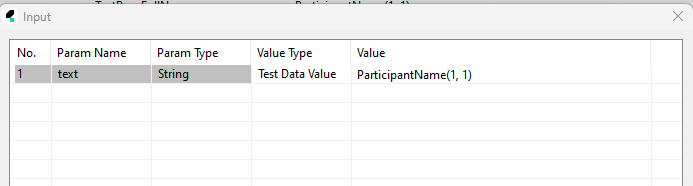
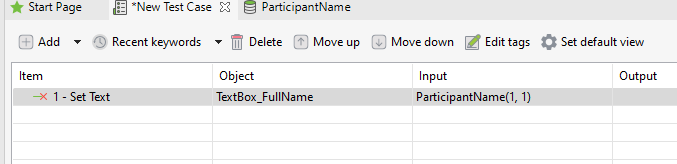
For example, we want to get the data from our Data File and input it into a textbox. Click on the arrow beside the “Add” button, select “Web UI Keyword” (for Web UI), then select “Set Text”. In the object column double click it, then choose the object you want to set text to. Then in the Input column, double click it, then click on the “Value Type”, and there should be a button on the right side, and choose “Test Data Value”. The column on the right side should turn into “null(1,1)”. Double click on it, and on the “Test Data” row, choose the Data File we have created, then set the column and row of the value you want to select, and click “OK”.
Get Values From a Data File in Test Case Script View
To get the data from our Data File and input it into a textbox in script view is easy. We need to use this syntax:
WebUI.setText(findTestObject('TextBox_FullName'), findTestData('ParticipantName').getValue(1, 1))
or
WebUI.setText(findTestObject('TextBox_FullName'), findTestData('ParticipantName').getValue('columnName', 1))Using this syntax, we can retrieve values from a Data File using the column number and row number. Or we can use the column name (in quotation marks) and row number.
Print Out Data File’s Values in a Test Case
And off course we can assign the Data Files values into variables. For example:
String FirstName = findTestData('ParticipantName').getValue(1, 1)

println(FirstName)
Using this easy syntax, we can assign a string variable called “FirstName” with the value of our Data File. Then print the value of the variable. And using this we can create many data driven scenarios. It is highly suggested to create Test Cases with valid data and avoid hard coding data for easy mantenance.